

Automating processes on your WordPress website doesn’t have to be complicated. Tools like n8n are powerful, but they often require extra hosting, webhooks, and a lot of technical setup.
That’s why many beginners feel stuck before they even get started. The good news is that you can actually use a plugin to automate many common WordPress tasks.
In this guide, I’ll show you how to add n8n-like automation in WordPress using Uncanny Automator.
You can automatically connect your plugins, trigger actions based on user activity, and even build AI-powered workflows, all without touching a single line of code.
By the end, you’ll be able to automate everyday WordPress processes in a way that’s easier, cheaper, and beginner-friendly.
💡Quick Answer: How to Add n8n Like Automation in WordPress
You don’t need n8n to get powerful automation on your WordPress site. With Uncanny Automator, you can connect plugins, run AI-powered tasks, and automate repetitive workflows without coding or webhooks.
Here’s how it works:
- Install and activate Uncanny Automator (Pro version needed for some integrations).
- Connect your external apps like Google Sheets or OpenAI inside Automator.
- Create a recipe by selecting a trigger, such as a WooCommerce purchase or WPForms submission.
- Add actions for what should happen next—like adding a row to Google Sheets, creating a new user, or sending AI-generated emails.
- Map dynamic fields using the dropdowns—no JSON or API setup required.
- Save and activate your recipe, and your workflow runs automatically whenever the trigger occurs.
Here’s a quick overview of all the topics I’ll cover in this guide:
- What Is n8n?
- Where Does n8n Fall Short for WordPress Users?
- Why Use Uncanny Automator Instead of n8n?
- How to Use Uncanny Automator for WordPress Workflows
- More Real-World Use Cases for WordPress Automation: What You Can Build (That’s Harder in n8n)
- FAQs About Using Uncanny Automator vs. n8n
What Is n8n?
n8n is an open-source workflow automation tool that lets you connect different apps and services to automate tasks.
Instead of writing code, you build workflows using a visual, node-based editor. Each node represents a step, such as receiving data, processing it, or sending it to another app. This makes it possible to create powerful, multi-step automations.
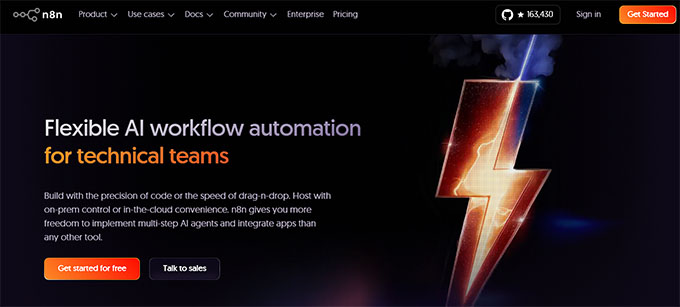
I’ve tested n8n several times, and it’s a solid tool. Once you understand how everything fits together, it works smoothly and gives you a lot of flexibility.
n8n is commonly used for:
- Syncing data between different tools and platforms
- Handling webhook-based events
- Creating multi-step automation workflows across multiple apps
This level of flexibility is great for advanced setups. But for many WordPress users, it can feel like more than they actually need—especially for everyday automation tasks.
Where Does n8n Fall Short for WordPress Users?
n8n is powerful, but it wasn’t built specifically for WordPress. Even simple automation tasks can feel complicated and confusing if you’re not a developer.
Here are the main reasons it can be tricky for WordPress users:
- No Native Plugin Integration: If you’re a beginner, it can be really difficult and time-consuming to find and connect the right API for every tool you want to automate.
- Data Mapping Complexity: WordPress often sends data in formats that n8n doesn’t understand right away, so you need to spend extra time translating and mapping fields correctly.
- Limited WordPress-Specific Triggers: It’s not easy to track events like user role changes, post status updates, or plugin actions such as WooCommerce orders, which are common tasks for WordPress sites.
- Extra Setup and Maintenance: Managing servers, keeping everything updated, and securing webhooks takes a lot of time and technical knowledge, which can be frustrating if you just want automation to work.
These challenges can make automation harder than it needs to be. To get a better sense of the hidden costs and extra effort involved, check out the dropdown below.🤯The Three Hidden Costs of Using n8n for WordPress
Automating WordPress with n8n can seem simple at first, but I’ve discovered there are some hidden costs and time commitments that beginners often don’t expect.
Here’s a quick breakdown of the main challenges:
| Hidden Cost | What It Means | Typical Cost / Time |
|---|---|---|
| Infrastructure Costs | You need a Private Server (VPS) or self-managed hosting to run n8n, along with a domain and SSL certificate. | VPS hosting: $12–24/month n8n.cloud: starts at $20/month for 2,500 workflow executions |
| Time Investment | Setting up workflows, testing them, and maintaining them every month takes time and effort. | Initial setup: 4–8 hours Monthly maintenance: 2–4 hours |
| Learning Curve | n8n requires understanding webhooks, JSON mapping, and error handling. | Estimated 10–20 hours to get everything working correctly |
The bottom line is that creating even a simple n8n workflow for WordPress can be more complicated and time-consuming than most users expect.
Why Use Uncanny Automator Instead of n8n?
If you want powerful automation for WordPress without the technical headaches, Uncanny Automator is the best option.
I’ve tested both n8n and Uncanny Automator multiple times, and I can say from experience that while n8n is very powerful, it comes with a steep learning curve.
You need to set up webhooks, handle APIs, parse JSON, and manage authentication—steps that can take hours for even a simple workflow.
Uncanny Automator, on the other hand, makes all of this so much simpler. You don’t need external servers, webhooks, or complex technical setups.
Everything happens directly inside WordPress, and you can connect plugins and trigger actions without touching a single line of code.
Here’s a quick comparison of a typical workflow in n8n versus Uncanny Automator:
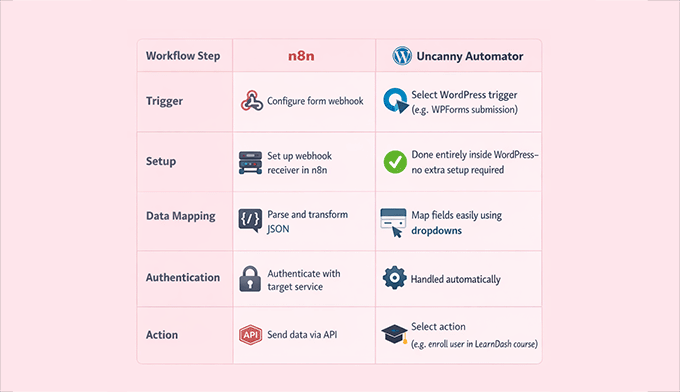
Even with all this simplicity, Uncanny Automator is still incredibly powerful. You can automate complex workflows, connect dozens of plugins like WooCommerce, LearnDash, WPForms, MemberPress, BuddyPress, and more.
Plus, you get to handle multiple triggers and actions in a single workflow. It lets you focus on what you want to happen, not the technical mechanics behind it.
This combination of ease-of-use and power is what makes Uncanny Automator a game-changer for WordPress users compared to n8n.Pricing Comparison: n8n vs Uncanny Automator
When it comes to automation, cost isn’t just about money—it’s also about your time and effort.
Here’s how n8n stacks up against Uncanny Automator:
| Cost Factor | n8n | Uncanny Automator |
|---|---|---|
| Setup Costs & Time | 4–8 hours to configure webhooks, servers, APIs, and authentication | A few minutes to select triggers and actions inside WordPress |
| Ongoing Maintenance | 2–4 hours per month for server updates, workflow monitoring, and troubleshooting (~$100–200/month in value) | Minimal—runs on your existing WordPress hosting with no extra maintenance |
| Hosting / Infrastructure | VPS hosting $12–24/month or n8n.cloud subscription starting at $20/month | Uses your existing WordPress hosting (+ starting at $199 per year for the plugin’s annual license) |
| Per-Task / Execution Limits | n8n.cloud has usage limits based on workflow executions | Unlimited automations on your site (external APIs like OpenAI may still charge usage fees) |
| Learning Curve | 10–20 hours to understand webhooks, JSON mapping, and error handling | Almost zero—plain-English triggers, dropdown mapping, visual recipe builder |
💡Key Takeaway: For active WordPress sites, Uncanny Automator offers predictable, flat pricing and eliminates the hidden costs of hosting, maintenance, and technical setup, while still giving you all the power you need for complex automation.When is n8n a Better Choice?
I want to be transparent here—no single tool fits every scenario.
While Uncanny Automator covers nearly all WordPress workflows without touching code, some situations demand advanced flexibility, complex data handling, or integration across multiple platforms.
Understanding these limitations helps you choose the right tool for the right job.
In my opinion, n8n could be better for:
- Automating between multiple non-WordPress systems, like syncing CRMs, SaaS platforms, or databases.
- Complex data transformations, such as regex, JSON parsing, or custom logic that WordPress plugins don’t handle natively.
- Using a single automation platform for your entire tech stack, especially if your workflows span multiple apps.
- Workflows that require extensive custom code execution, where visual dropdowns won’t cover all the requirements.
I also recommend a hybrid approach for many WordPress site owners. You can use Automator for WordPress-internal workflows and connect to n8n for external system integrations via Automator webhooks.
This lets you enjoy simple, no-code automation inside WordPress while still using n8n’s power for complex tasks.
How to Use Uncanny Automator for WordPress Workflows
Uncanny Automator isn’t just for simple tasks—you can use it to automate a wide range of workflows right inside WordPress.
For example, you can:
- Automatically log WooCommerce purchases to Google Sheets.
- Generate content automatically from form submissions using OpenAI.
- Create new user accounts after a purchase or form submission.
- Analyze WooCommerce reviews or blog comments with AI to detect negative sentiment and alert your team.
- Connect your WordPress site to tools like Google Sheets, Slack, Zoom, Mailchimp, or even use Zapier for special edge cases—all without complex API setups.
To learn more about the plugin itself, you can check out our detailed Uncanny Automator review.
If this is your first time using an automation plugin, don’t worry. I’ll walk you through setting up a workflow in WordPress.
I’ll show you one example: logging WooCommerce purchases to Google Sheets and creating a user account on your site.
The process is very similar for almost any other automation you want to create, whether it’s AI content generation, user notifications, or syncing data between plugins.
Step 1: Install and Activate Uncanny Automator
The first thing you need to do is sign up for an account on the Uncanny Automator website. Just click on the ‘Get Uncanny Automator now’ button and follow the steps to sign up for an account.
📌 Note: Uncanny Automator also has a free version. But since this workflow uses Google Sheets and WooCommerce, you’ll need a premium plan to unlock those platforms.
Next, go to your WordPress dashboard. Here, you will need to install the free core plugin and the premium plugin (which you can find in a zip file in your Uncanny Automator account) for the integrations to work.
If you don’t know how to do that, check out our step-by-step guide on installing WordPress plugins.
Once everything is installed, go to Automator » Settings in your WordPress dashboard and enter your license key. You can find this information in your account on the Uncanny Automator website.
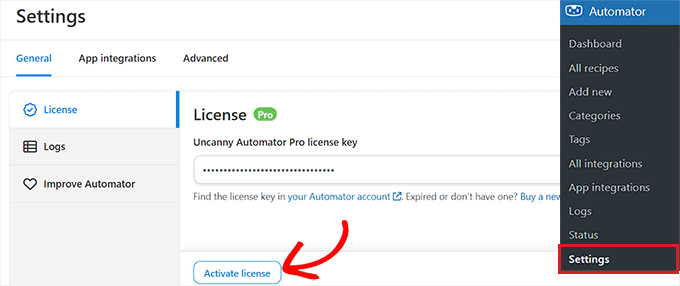
After entering the key, click the ‘Activate License’ button, and you’re ready to start creating automations.
Step 2: Connect Uncanny Automator to Google Sheets
For this workflow, you need to connect Google Sheets so that every WooCommerce purchase can be automatically logged in a spreadsheet.
This connection only needs to be set up once, and after that, Uncanny Automator will automatically update your chosen spreadsheets whenever a new order comes in.
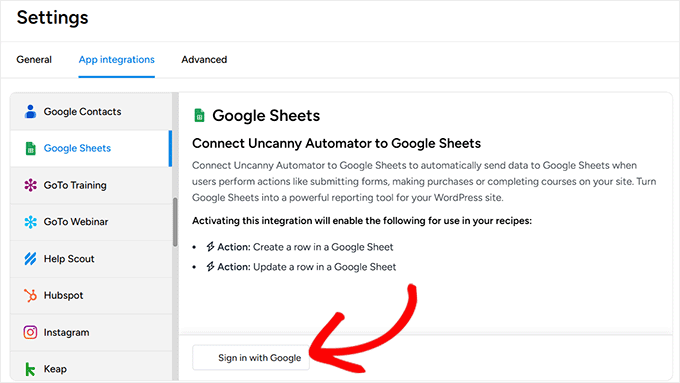
To get started, go to Automator » App Integrations and select ‘Google Sheets’ from the left column.
Click the ‘Sign in with Google’ button, then choose the account you want to link. If your account isn’t listed, you can add it using the ‘Use Another Account’ option.
Next, Google will ask for permissions so Uncanny Automator can access your spreadsheets.
This is completely normal, and the plugin only uses these permissions to add new rows to the spreadsheets you select.
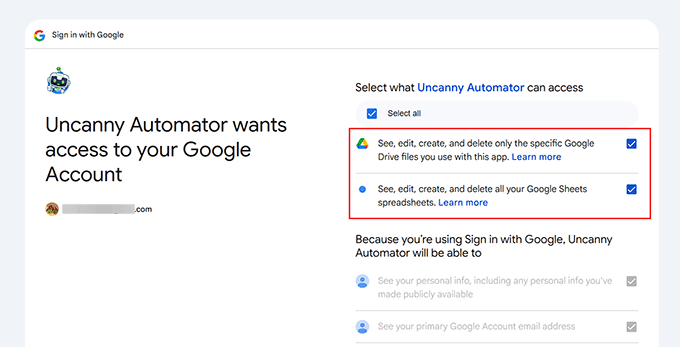
Once you approve, you’ll be redirected back to your WordPress dashboard with a confirmation that your account is connected.
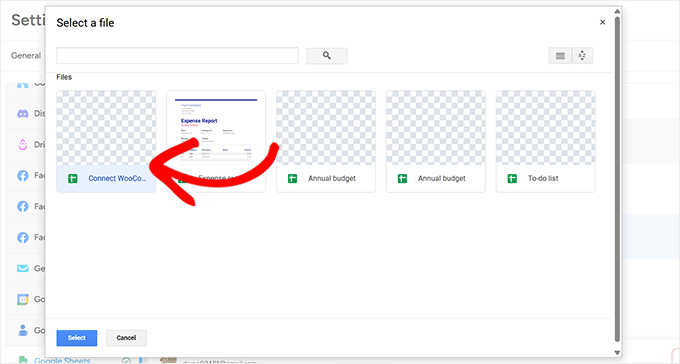
Finally, click ‘Select new sheet(s)’ and choose the spreadsheet you want to use for your WooCommerce store.
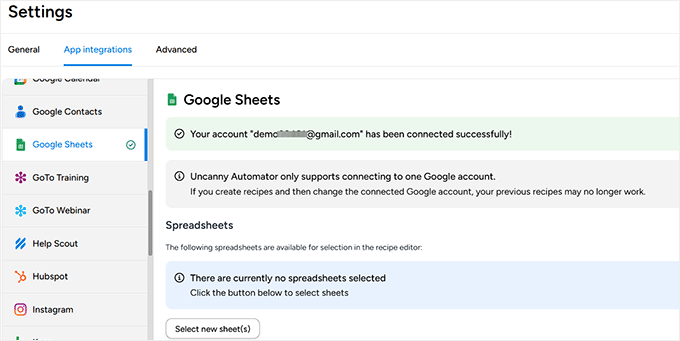
You can add multiple spreadsheets if needed, and all connected sheets will appear in the recipe editor when building automations.
For a more detailed, step-by-step guide on connecting Google Sheets, you can also see our tutorial on how to connect WooCommerce to Google Sheets.
Step 3: Create a Recipe and Set the WooCommerce Trigger
After connecting to Google Sheets, it’s time to create the automation itself. In Uncanny Automator, this automation is called a recipe.
Each recipe has two simple parts. The trigger is what starts the automation, and the action is what happens next.
Right now, I’ll be focusing on the trigger—the WooCommerce event that will start everything.
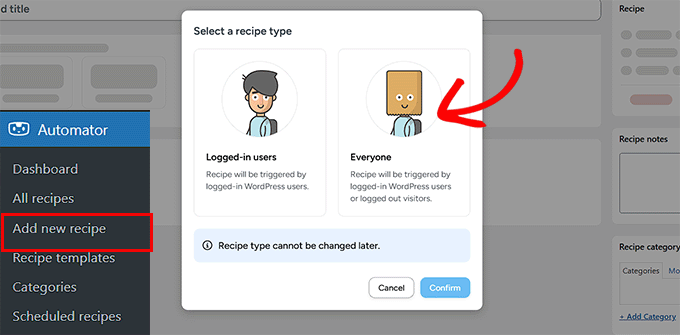
To get started, go to Automator » Add new recipe from your WordPress dashboard.
Here, you’ll be asked to choose between a ‘Logged-in’ recipe and an ‘Everyone’ recipe. Logged-in recipes only run when a user is signed in, but WooCommerce orders are often placed by guest customers.
Because of that, I recommend selecting ‘Everyone’ and clicking ‘Confirm.’
Next, give your recipe a name. This is only for your own reference, so you can name it something simple like ‘Send WooCommerce orders to Google Sheets and Create User Accounts.’
Orce on Google